How to Create a Free Blog: Beginner’s Guide.

Blog

Blog

Blog is also can be called as weblog. It is an online journal or can be explained as information about a topic in a website and it has been shown in reverse chronological order; that means the first post will appear last and the latest post will appear at first position. Blog can said as a platform in which users share their views and sights on a website as publicly available. Blog can be started with many reasons; it can be used as personal use, for business use etc. The main purpose of blog is to connect you to the audience. A blog combines text, digital images, and links to other websites, blogs, and other media which are related to the topic.

Blogger

Blogger
Blogger can be a platform or a service in which the blog has been created and published.Blogging is referred to as writing in a blog. For Example, If a person writes a new post about computer networks. So this person is a Blogger.

How to create a blog using Blogger.com ?

Create a free blog

1.Sign-up for Blogger

To create a free blog, head over to blogger.com and login using your Google account. If you don’t have an email account, first create it.

2.Click the create your blog button.

3.sign in to your email id to the sign in text box.

3.For creating new blog first give a title name suitable for your blog

4. Next step type short address that relates to your blog’s title.
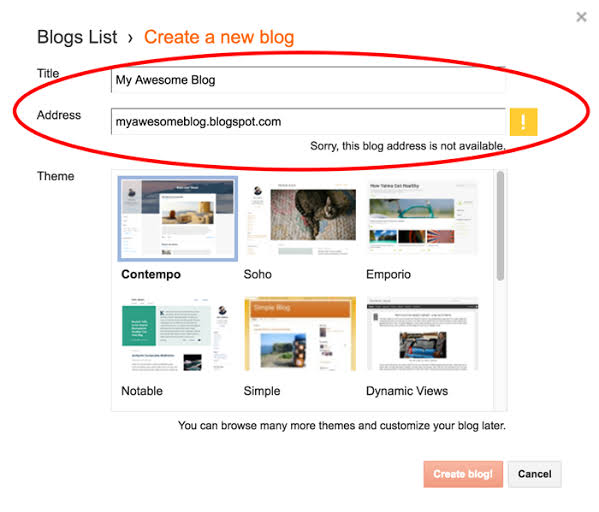
how to create a new blog

5.Then Select a template from the options listed below that.For first time you should select a default or simple template.

6. Click Create Blog Button.
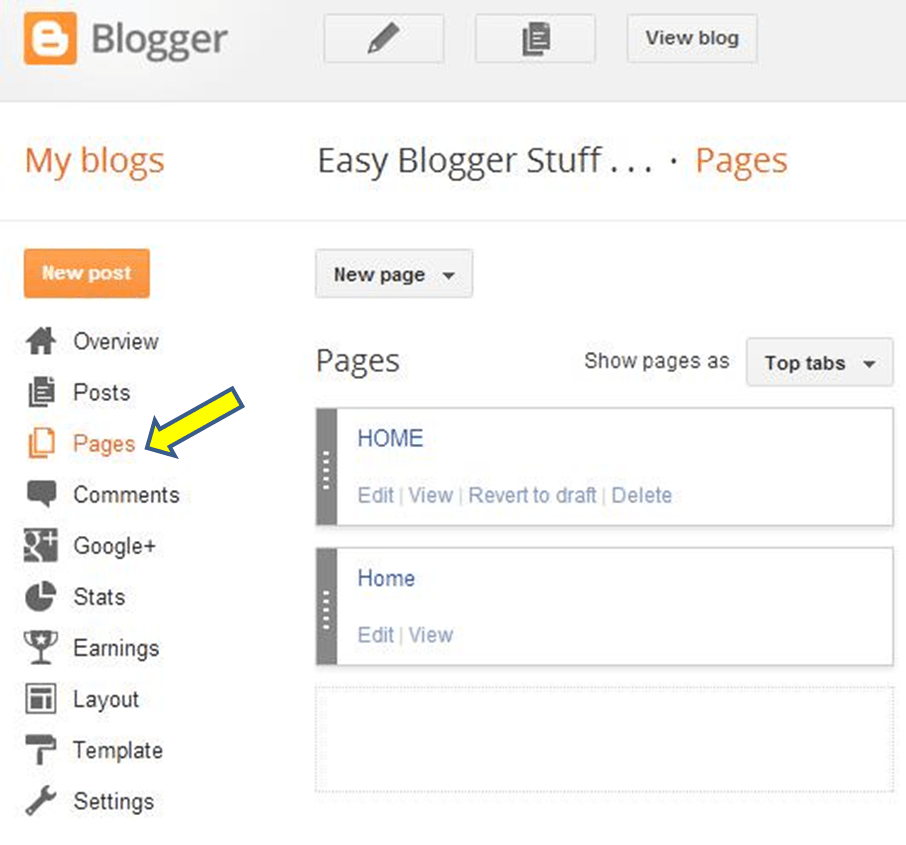
homepage of blogger

Word press

wordpress

Word Press is a free website which can be used to create a free webpages. WordPress is mostly used as content management system. WordPress is founted by Matt Mullenweg and Mike Little in May 27, 2003. It is an Open source website which builts in PHP.

Below are some examples of the types of websites buit with wordpress:

  • Blog
  • News
  • Photography
  • E-commerce
  • Buisness
  • Music
  • Membership

Get Started with WordPress:
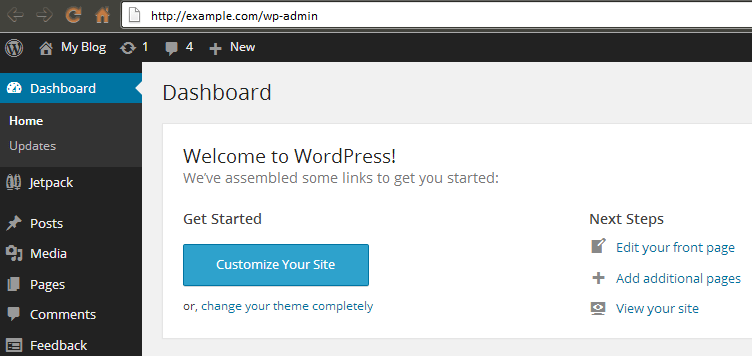
get started with wordpress

1.Sign up for word press.

2.A window will appear with what kind of website do you want to built.Personal or business website.

3. Select Personal web site .

4.Click Get Started.

5. Select what kind of site are you building. Select Blog.

6. Next window appears with what is your blog about.

7. Select Blogging.

8. A new window appears as tell us your blog’s name.

9.Select a suitable Domain name for your blog.

10. After selecting Domain name start blogging in wordpress.

11. You can select themes by logging into the dash board of the word press.

I think from this blog you got a guideline about “How to create a Free blog: Beginner’s Guide” You can also refer my previous blog A Complete Guide to Google Analytics.

A Complete Guide To Google Analytics and its Features

Google Analytics is known as a web analytics service is launched by google in November 2005 . This tracks and reports website traffic. It was the most widely used web analytic service Google analysis is used to track website activity such as session duration, pages per session, bounce rate etc.of a user using the site with the information on the source of traffic.

google Analytics

This google analysis also analysis the poorly performing pages with the methods such as funeral visualization that means where the visitors come from, the time duration they stayed on the website and their geographical position.

Some of the Basic Features of Google Analytics:

1.Traffic reporting

Google Analytics basically known as Traffic reporter. This service gives a clear picture about how many visitors visited your site, With this we can also tack trends with time,which provides influence on your marketing purposes.

2.Conversion tracking

Conversion tracking is the complete action done on a website it can be online or offline. It provides a successful business marketing.For examples a sign-up for email it shows goal conversion and purchase it can be transaction.

3.Keyword Referrals

In Keyword referrals, it shows what people were searching for finding a website help of google analytics it results the keyword what people searched for finding ones website. This technique gives more influence for the websites SEO Strategy.

4.AudienceReport 

Audience Report are the users that groups together based on any combination of some attributes as your business needs. When browsing a website it offers much more clear and attractive picture of the customers with demo graphical and geographical locations for the users interest.

5.Flow Visualization

Flow Visualization is the key feature in Google analytics. It is used to help to understand how people navigate your website. The information of the visitors and conversion reports are within the Flow visualization. It gives a graphical view with the website traffic on how the uses accessing the website.

Different types of traffics:

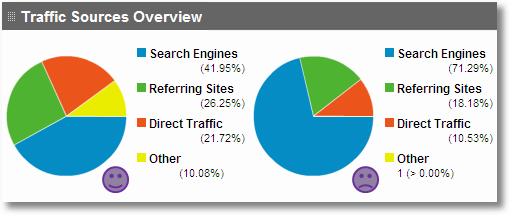
traffic sources in google analytics
  1. Organic traffic

Organic traffic is used for referring the visitors that came to the website as an unpaid search. Organic traffic is completely opposed to paid traffic. Organic traffic appeared in a site results in searching that user performs in a search engines, for example Google, Bing etc.

2. Refferal Traffic

Referral traffic is a traffic which reports visits that came to the website from different sources. When someone clicks on a hyperlink to go to a new site. It termed as referral search.

3. Social Traffic

It refers to the traffic coming to a website, Social traffic can be Paid or organic traffic depends on traffic if traffic came from marketing or social medias.

4. Direct Traffic

Direct Traffic refers as Direct Access to a website. It occurs when a user or a visitor lands directly on a website, without clicking links.

5. Paid Traffic

Paid traffic means any visitor visits your website with paid advertising promotions. PPC is the one of the most common paid traffic. Pay per click which utilizes Google ad words.

Basic steps for tracking a website using Google Analytics:

  • Create Google Account.
  • Sign-up into Google Analytics with your google Account.
  • At the Bottom left sidebar of your dashboard,click the admin button.
  • Create an account.
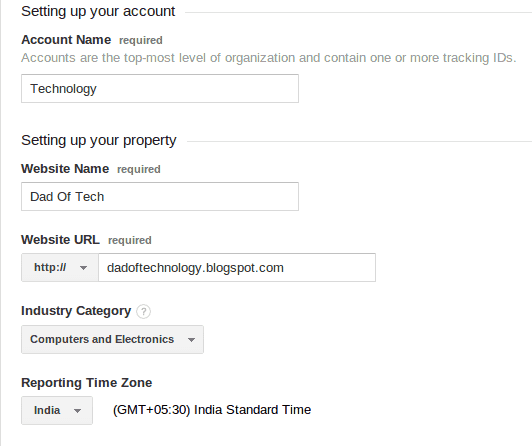
  • Click on the website option and add your website name,URL.
  • Choose Country,Time zone and industry.
  • Click on to Get Tracking ID.
  • Install or add tracking id on your website.
  • Then Copy and Paste tracking id in the analysis and web property in Blogger.
  • Paste the Tracking code in the theme section.
  • Saves the theme.
Tracking steps

Design a site like this with WordPress.com
Get started